 MY BUSINESS

BUSINESS / OWNER SETUP
Set up your
business account.
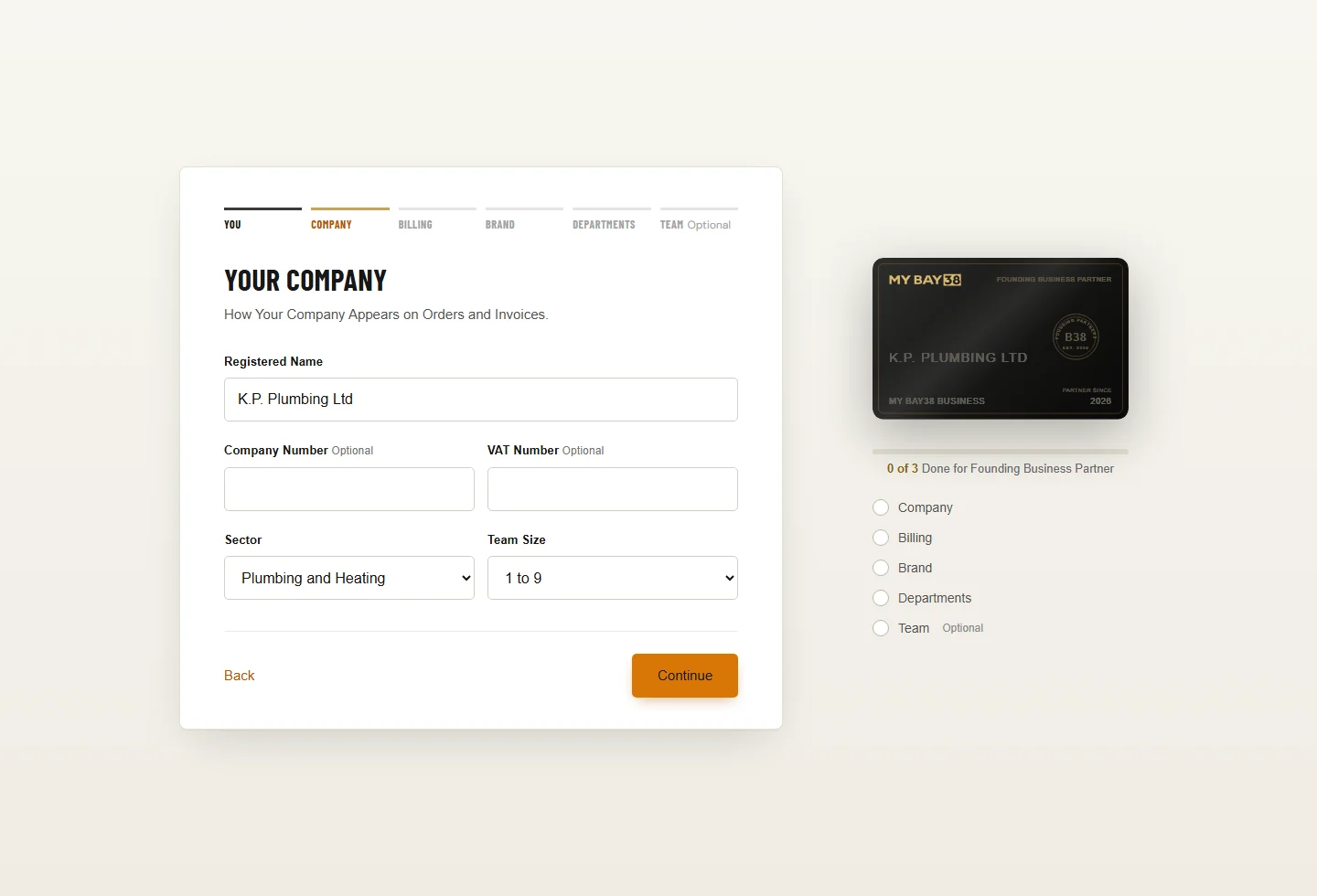
Follow Karl as he sets up K.P. Plumbing, adds the team and sets the kit and ordering rules. Then see the finished account for Karl, Sheila and finally Bob.
Owner setup walkthroughSet up the business, then see it working for the team.
Start with Karl’s company.

Chapter finished.
Browser storage is unavailable. This visit’s progress will not be saved.
KEEP IT TO HAND
The reference guide.
Need a reminder? Open a topic for the details.
Owner Setup: Company, Billing, Brand and Team
The Owner sets up the business before the team starts ordering. Enter the company and billing details, add the logo, create departments, then add people with their departments and access levels. Send invitations to the people who need to sign in.
Next, choose the product range and starter kits, review access permissions, set budgets and configure approvals. The walkthrough finishes by showing the account in use as Karl, then Sheila, then Bob.
Ordering Rules and Authorisers
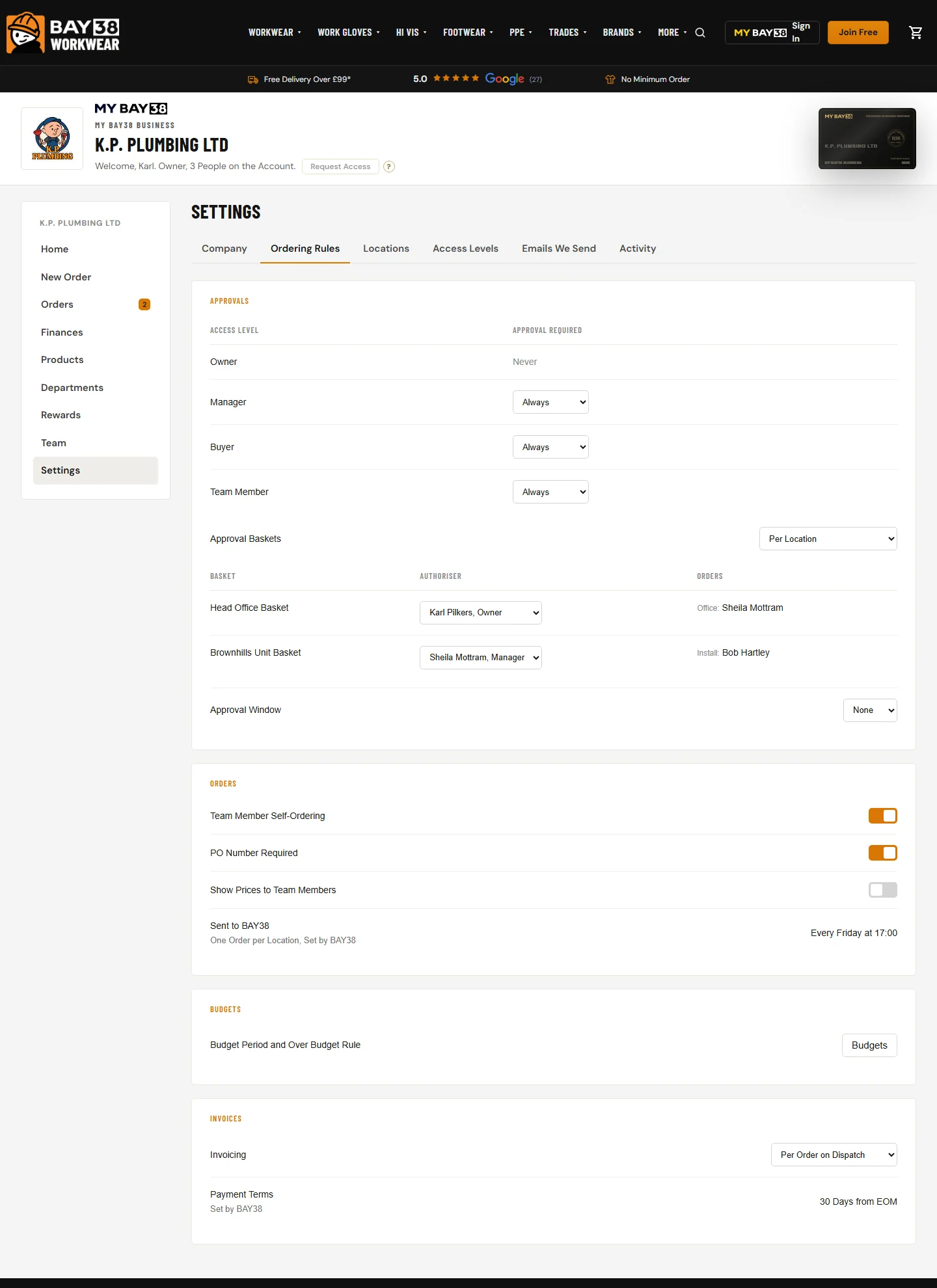
The Owner decides which access levels need approval, how requests are grouped and who authorises each basket. In this example, requests from Bob at Brownhills are assigned to Sheila. The Owner never needs approval.
Team Member Self-Ordering lets Bob place his own requests. PO Number Required and Show Prices to Team Members control the other choices he sees.
New Order
Order By Team Member
to kit out a person, or By Size
for stock such as gloves and glasses that is charged to a department. Pick the person and the account already knows their sizes, so each product opens on their Saved Size
.
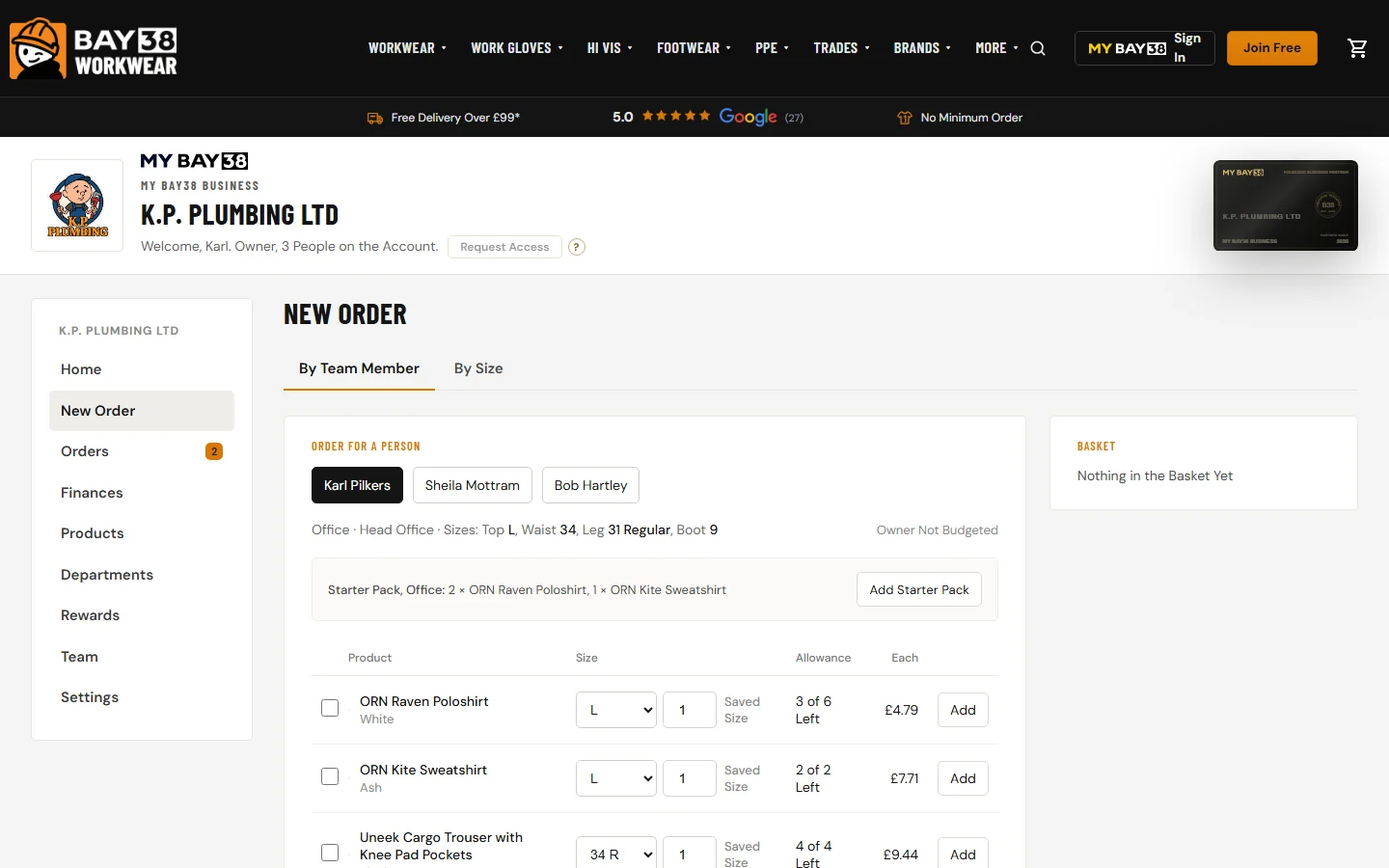
3 of 6 Left.
How to Order
- Choose the person, then Add each product in their size.
Add Starter Pack
adds the department's new starter kit in one go.- The basket on the right totals the order and says if it needs approval.
What Stops an Order
- Allowances: a set number of each product per person per year.
Only the Owner Can Go Over an Allowance.
- Budgets: an order over budget goes for approval, or is blocked, as the Owner sets it.
- A PO number, when the account asks for one on every order.
Baskets and Approvals
Orders that need approval go to the person's Authoriser. Orders for the same location are gathered into one basket, so the Authoriser approves one delivery, not ten small ones. Bob's two requests from Brownhills arrive as one Brownhills Unit Basket
.
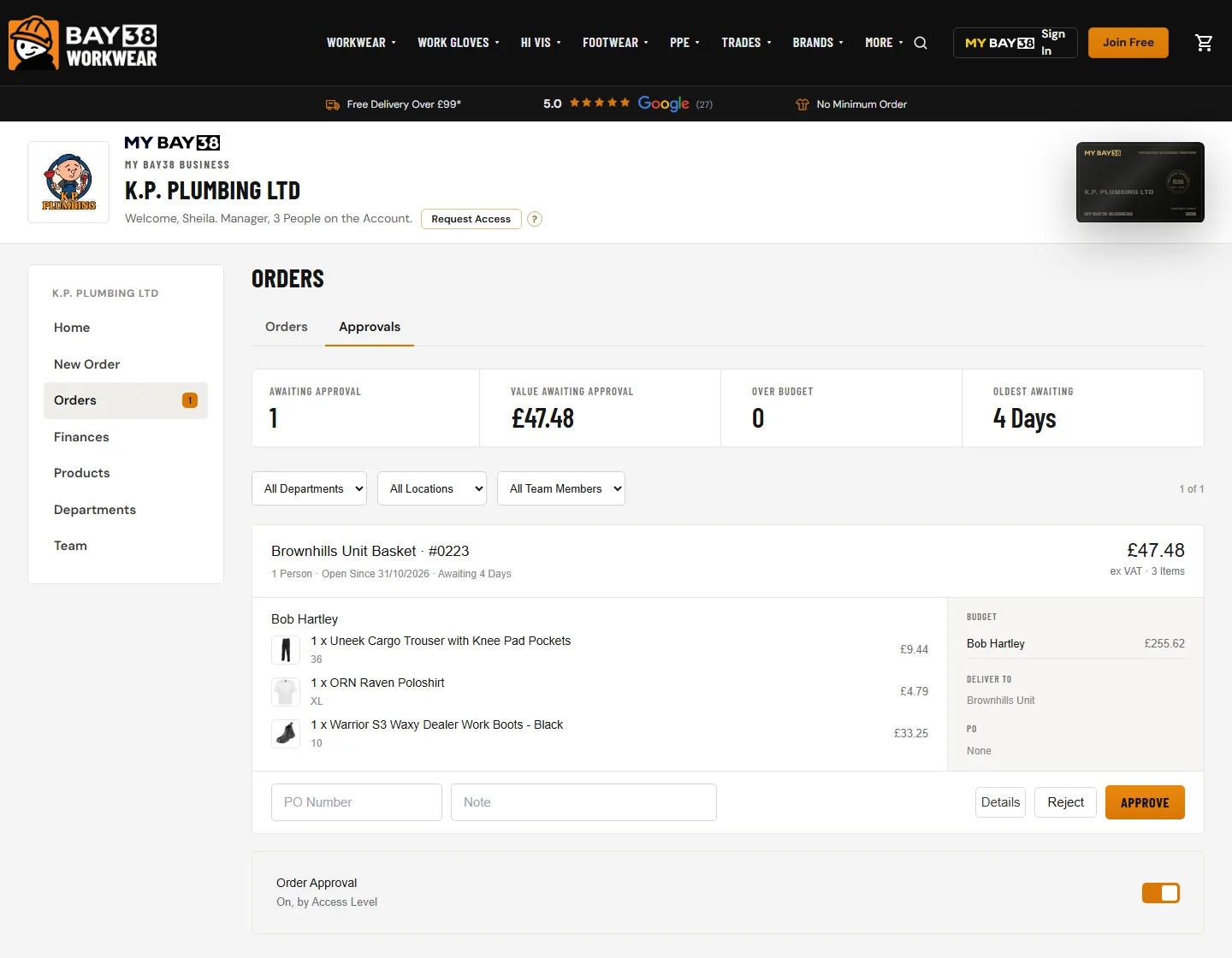
Approve
- Add the PO number if there is one, then Approve.
- On account, approved baskets are sent to BAY38 together at the next release.
- Paid by card, the Authoriser pays at checkout and it goes straight away.
Reject
- Pick a reason, add a note, and Reject. The person sees why.
- K.P.'s order #0216 shows one:
You had a sweatshirt in September. Ask again in January.
Orders
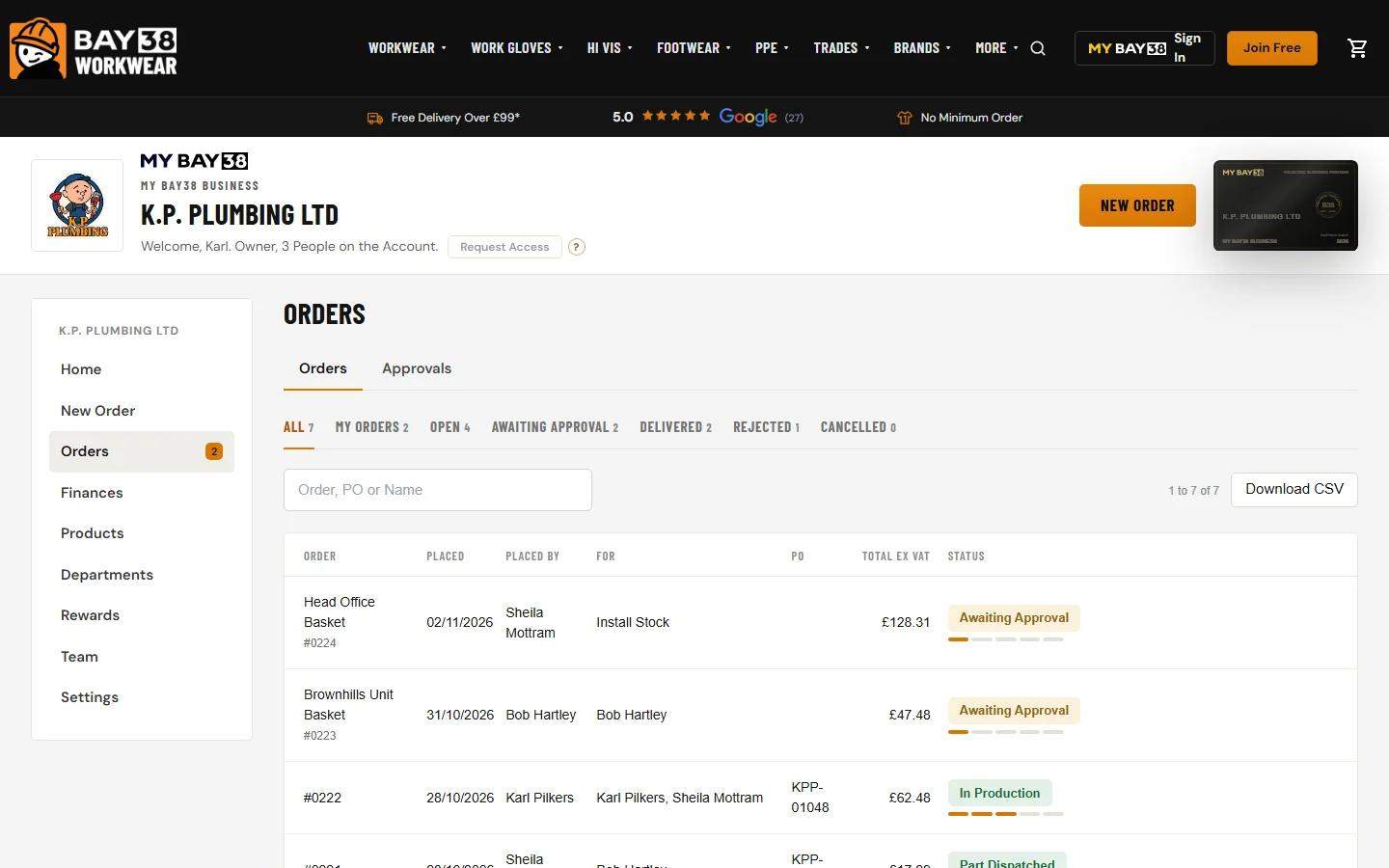
Every order on the account, with who placed it, who it is for, the PO and where it is. The filters along the top (All, My Orders, Open, Awaiting Approval, Delivered, Rejected, Cancelled) narrow it down, and Download CSV takes the list into a spreadsheet.
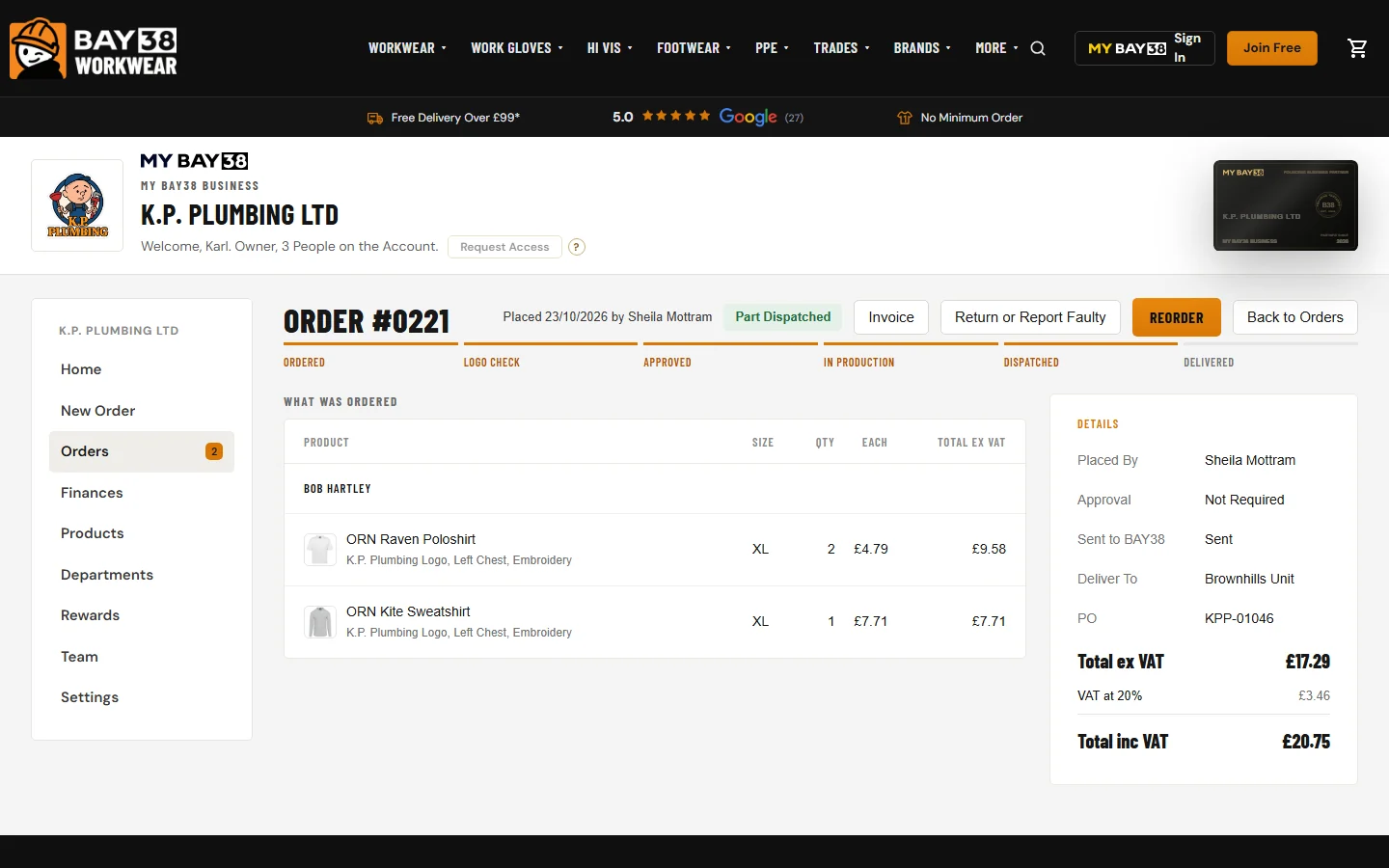
Open an order to see each line grouped by the person it is for, the steps from Ordered to Delivered, and the details: Placed By, Approval, Deliver To and PO. From there you can open the Invoice
, Return or Report Faulty
once it has shipped, or Reorder
the same kit.
Invoices and Statement
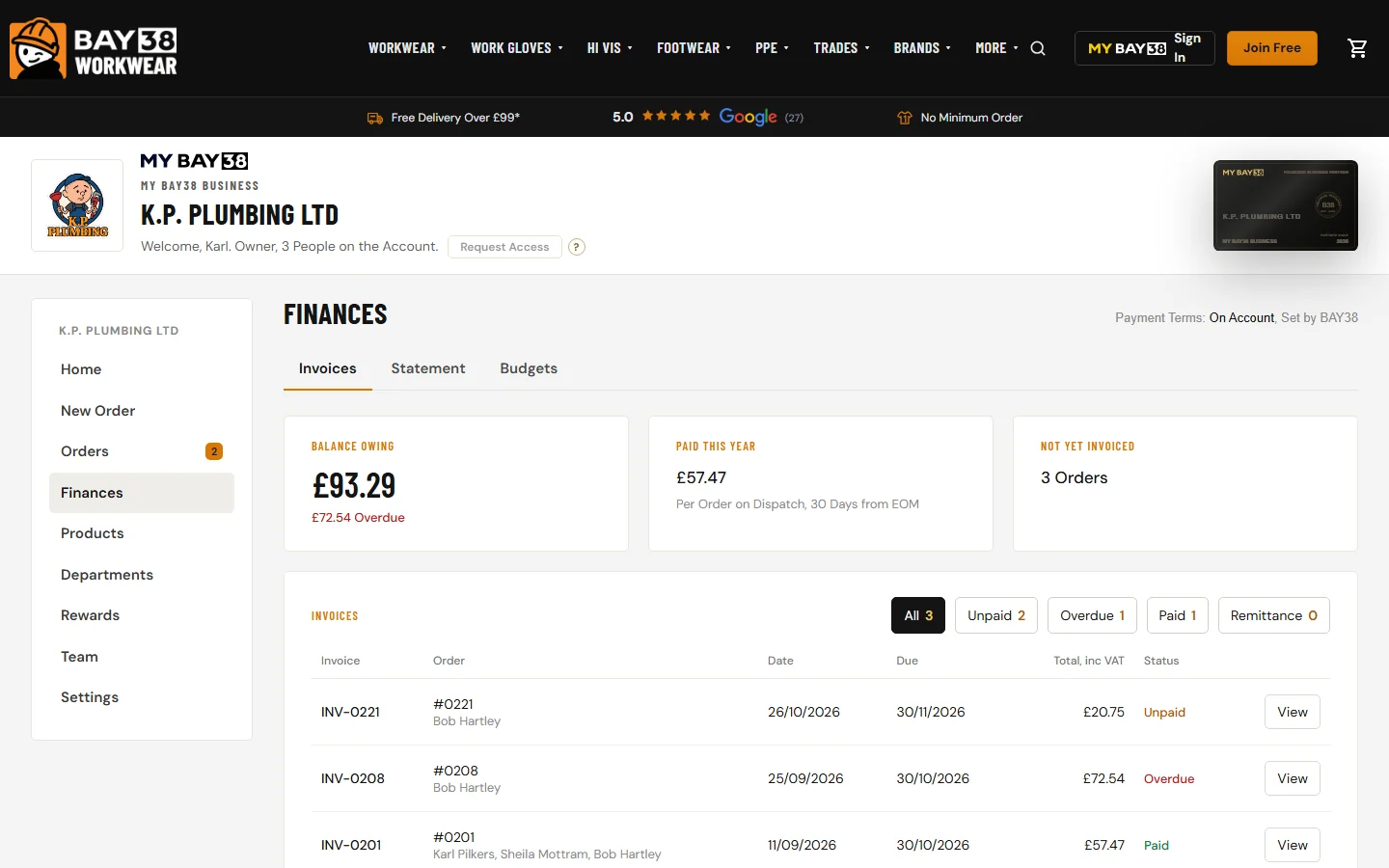
Finances shows the Balance Owing, what is overdue, what was paid this year and the orders not yet invoiced. On account, each order is invoiced when it is dispatched and is due 30 Days from EOM
. Payment terms are set by BAY38.
Invoices
- View or download any invoice; tick several to download them together.
- Unpaid, Overdue, Paid and Remittance filters along the top.
Statement
- The account's statement as BAY38 sends it, to download as a PDF.
Budgets
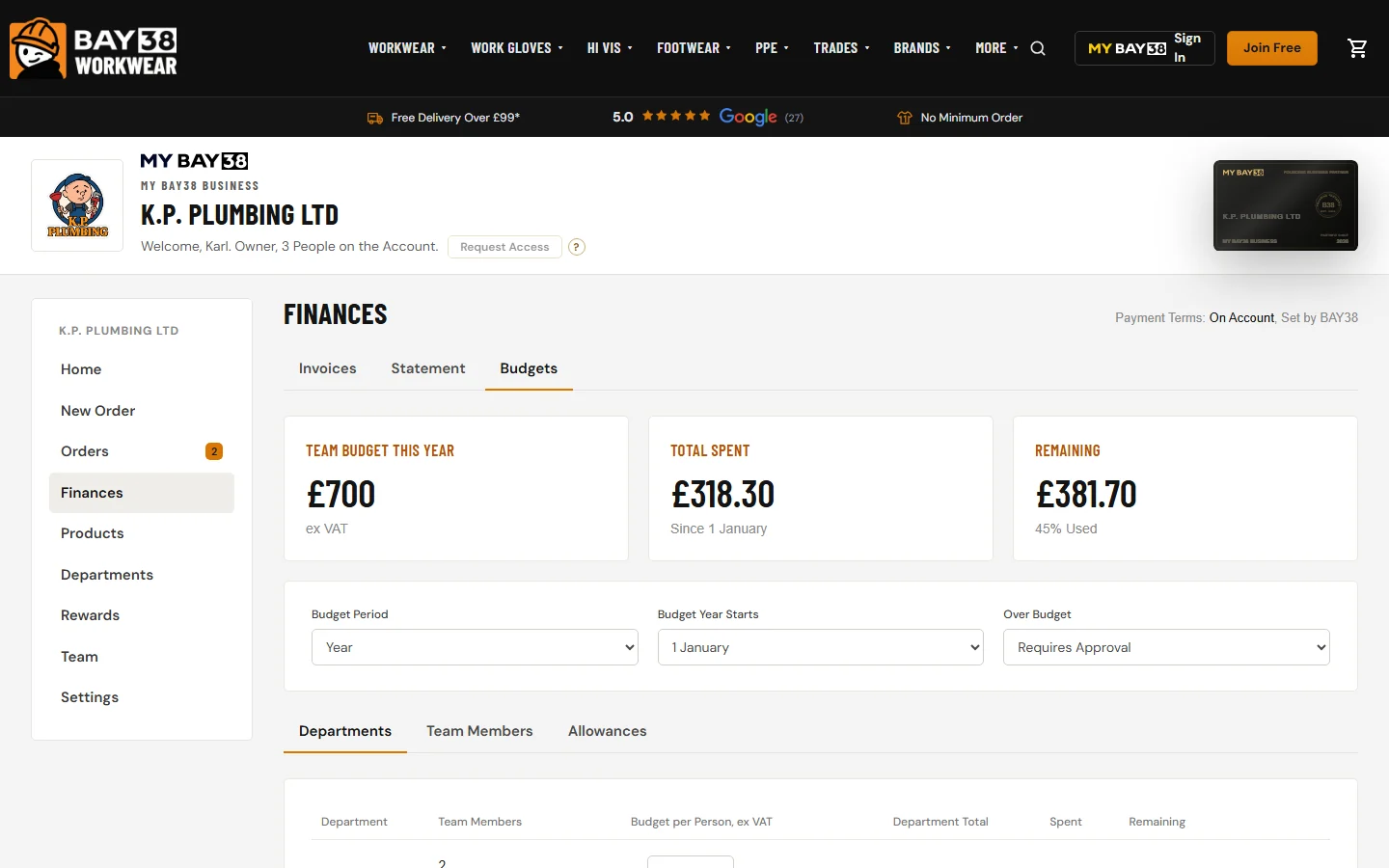
Budgets are set per person, by department. The page shows the team budget for the period, what is spent and what remains. The Owner chooses the Budget Period (Month, Quarter, 6 Months or Year), the month the Budget Year Starts, and what happens when an order goes over: Requires Approval
or Block Order
.
Products and Logos
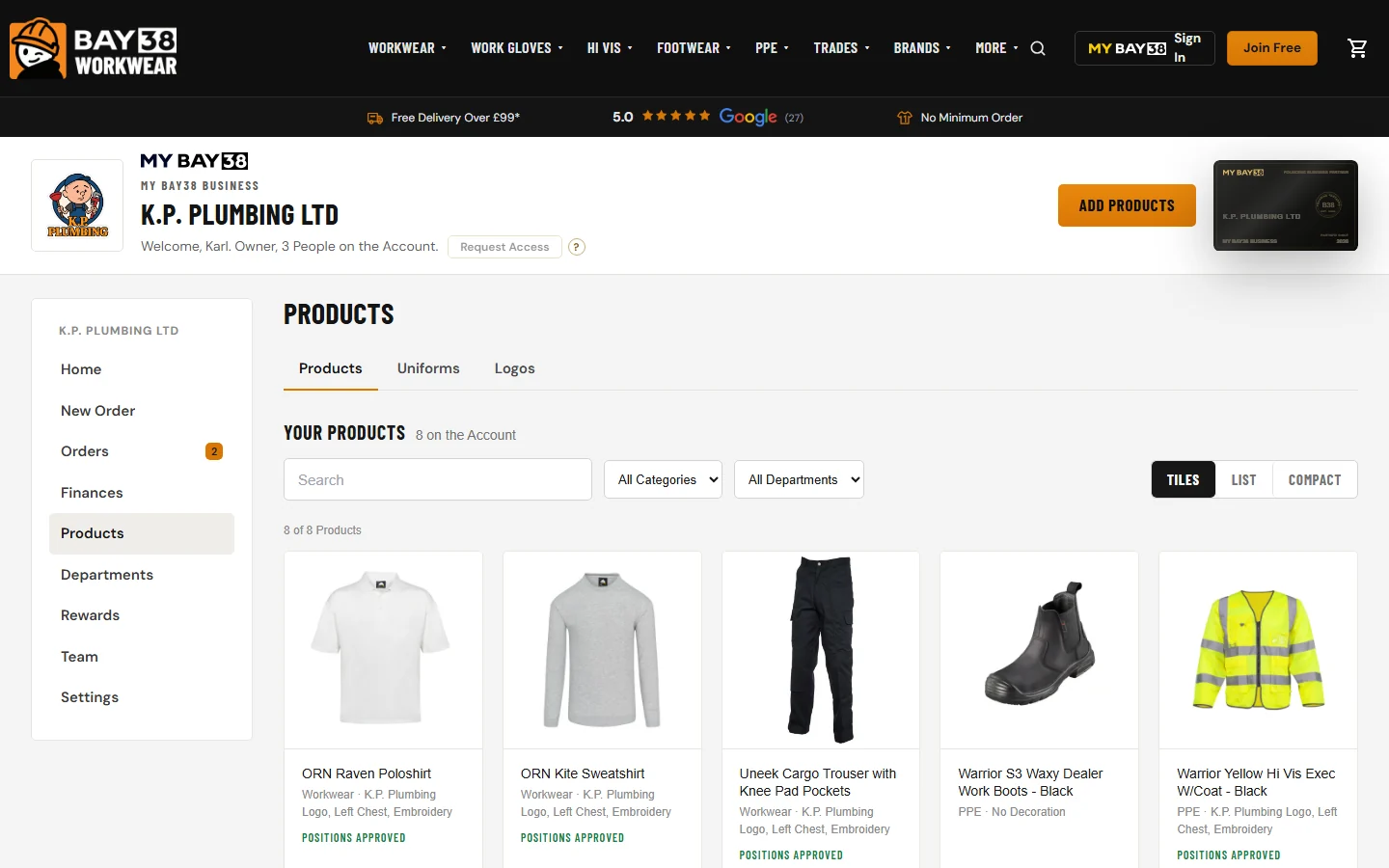
Products is the company's own range: what the team can order, with the logo and its position on each garment and which departments can order it. A logo position is checked by BAY38 before it can be ordered; once it is, the product reads Positions Approved
.
Departments and Starter Kits
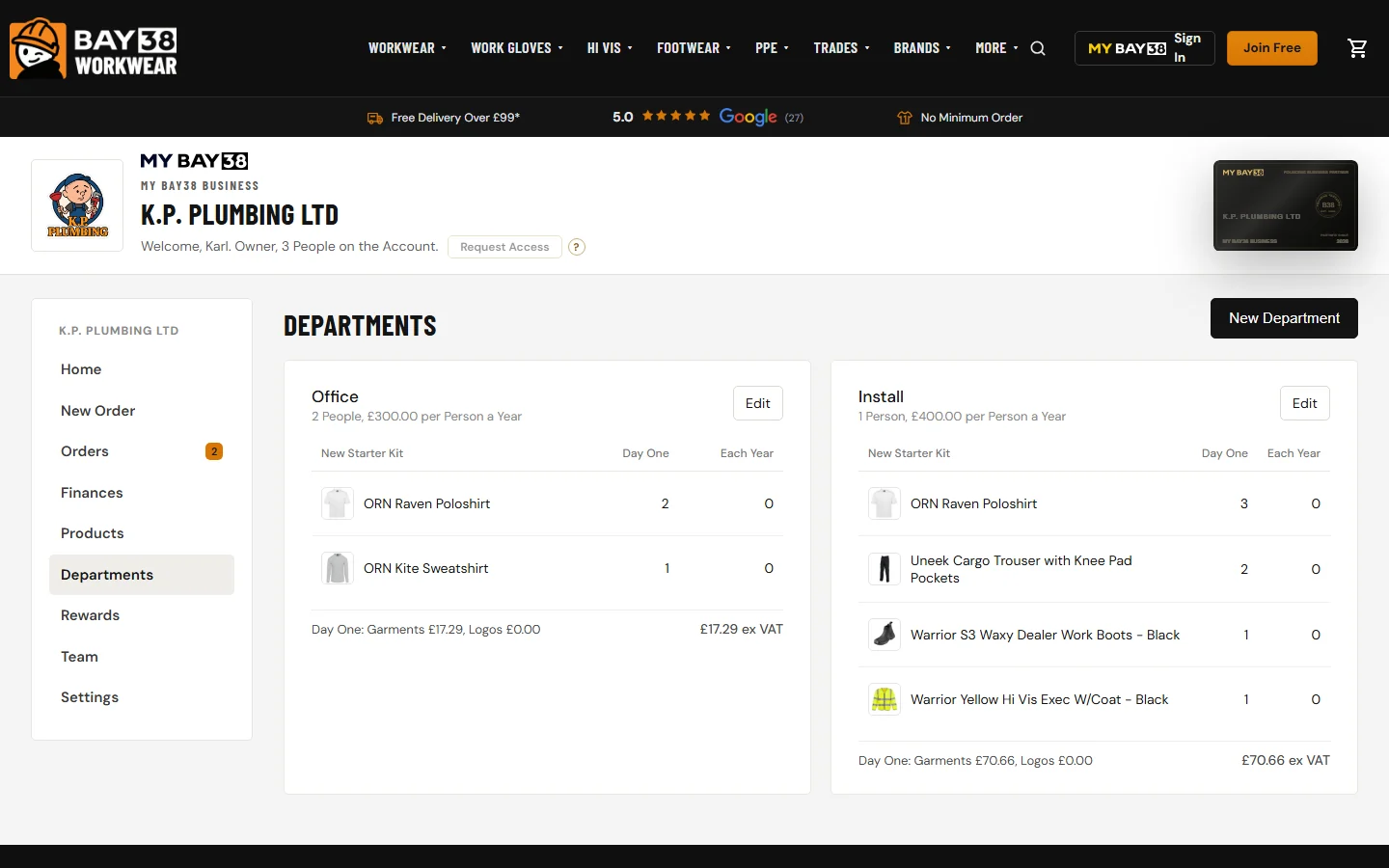
Each department has its budget per person and a New Starter Kit
: what someone gets on Day One, and what more they can have each year. When a new person joins, their kit is one button on New Order.
Team
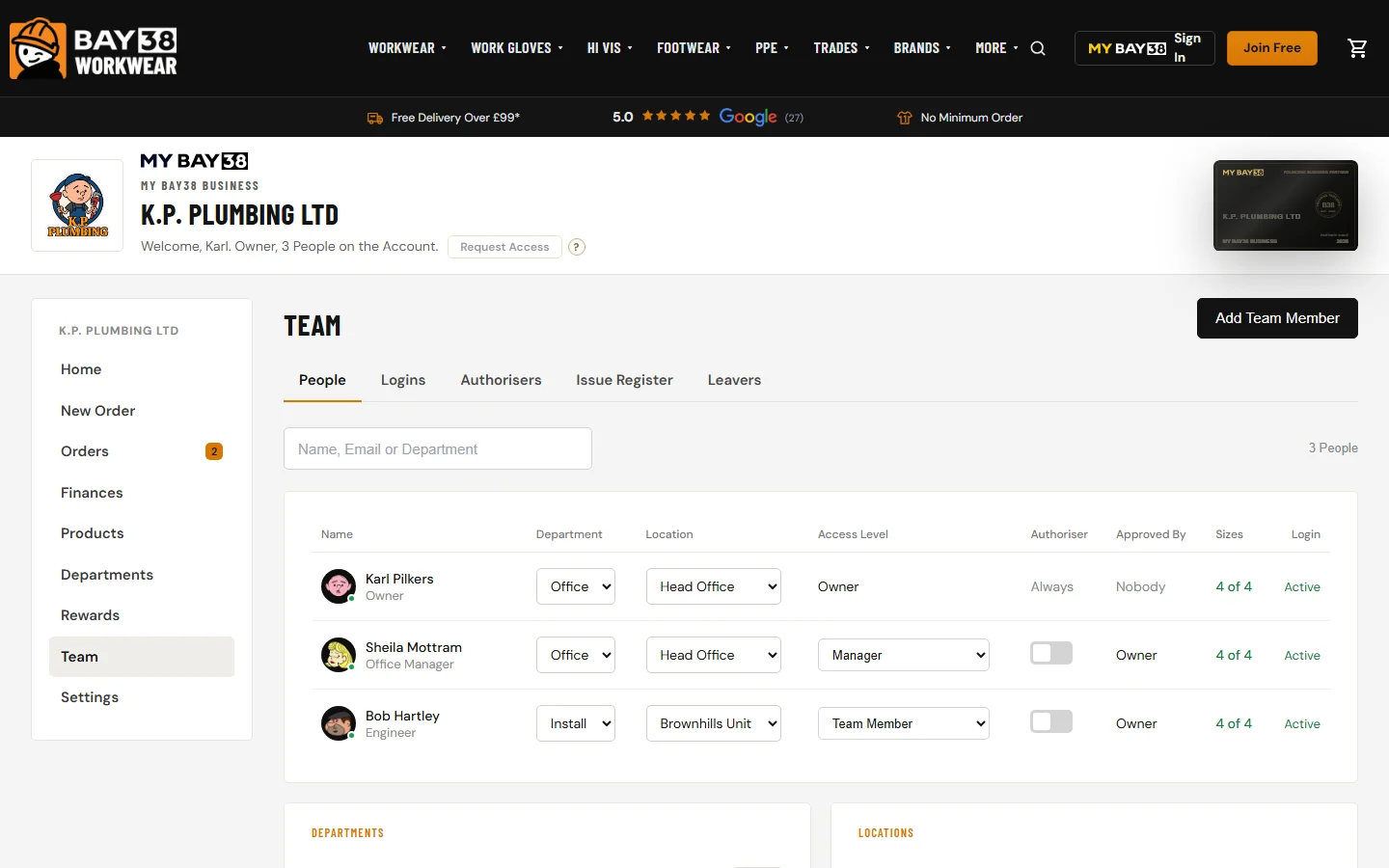
Everyone on the account: department, location, access level, who approves their orders and whether their sizes are saved. Add Team Member
adds a person and can send them a login. The tabs cover Logins, Authorisers, the Issue Register of what each person has had, and Leavers.
Access Levels
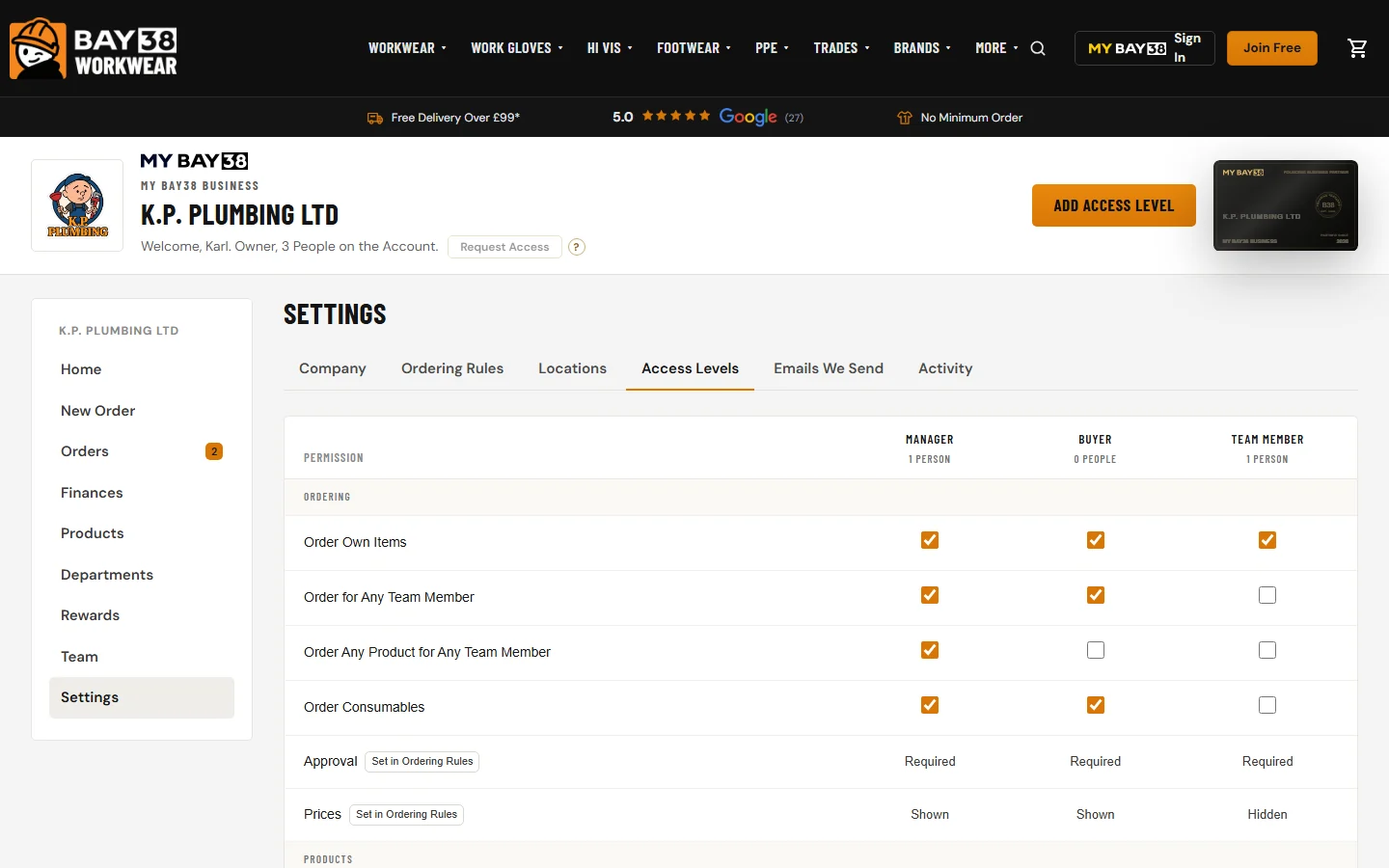
Access Levels decide what each person can do: order for themselves or for others, add products, upload logos, manage the team, approve orders, see invoices. The Owner can see everything. Manager, Buyer and Team Member start with sensible settings and each tick can be changed.
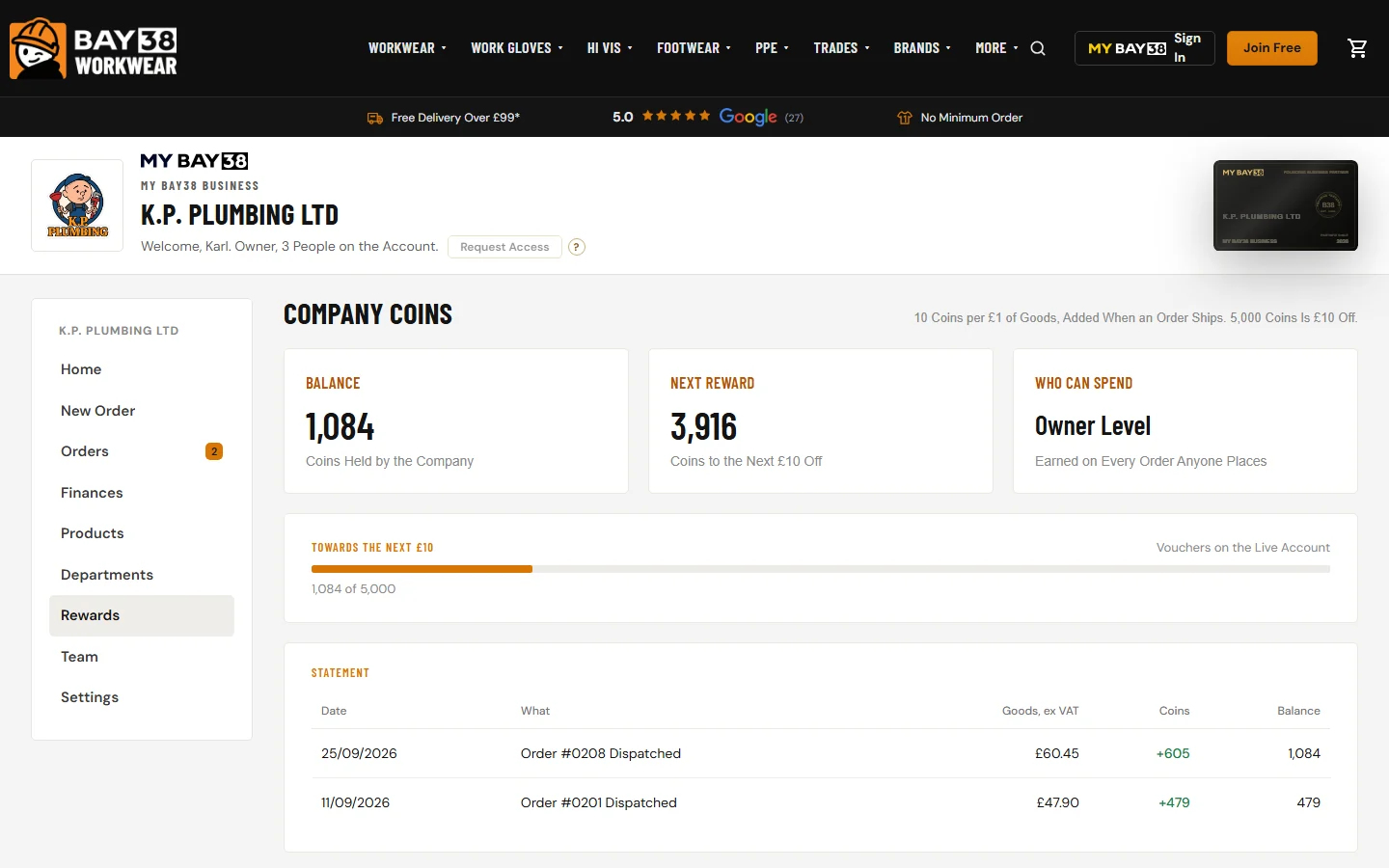
Company Coins
10 Coins per £1 of Goods, Added When an Order Ships. 5,000 Coins Is £10 Off.
Every order anyone on the team places earns for the company, and the Owner level turns coins into £10 vouchers to use at checkout. The statement shows each order's coins as it ships.
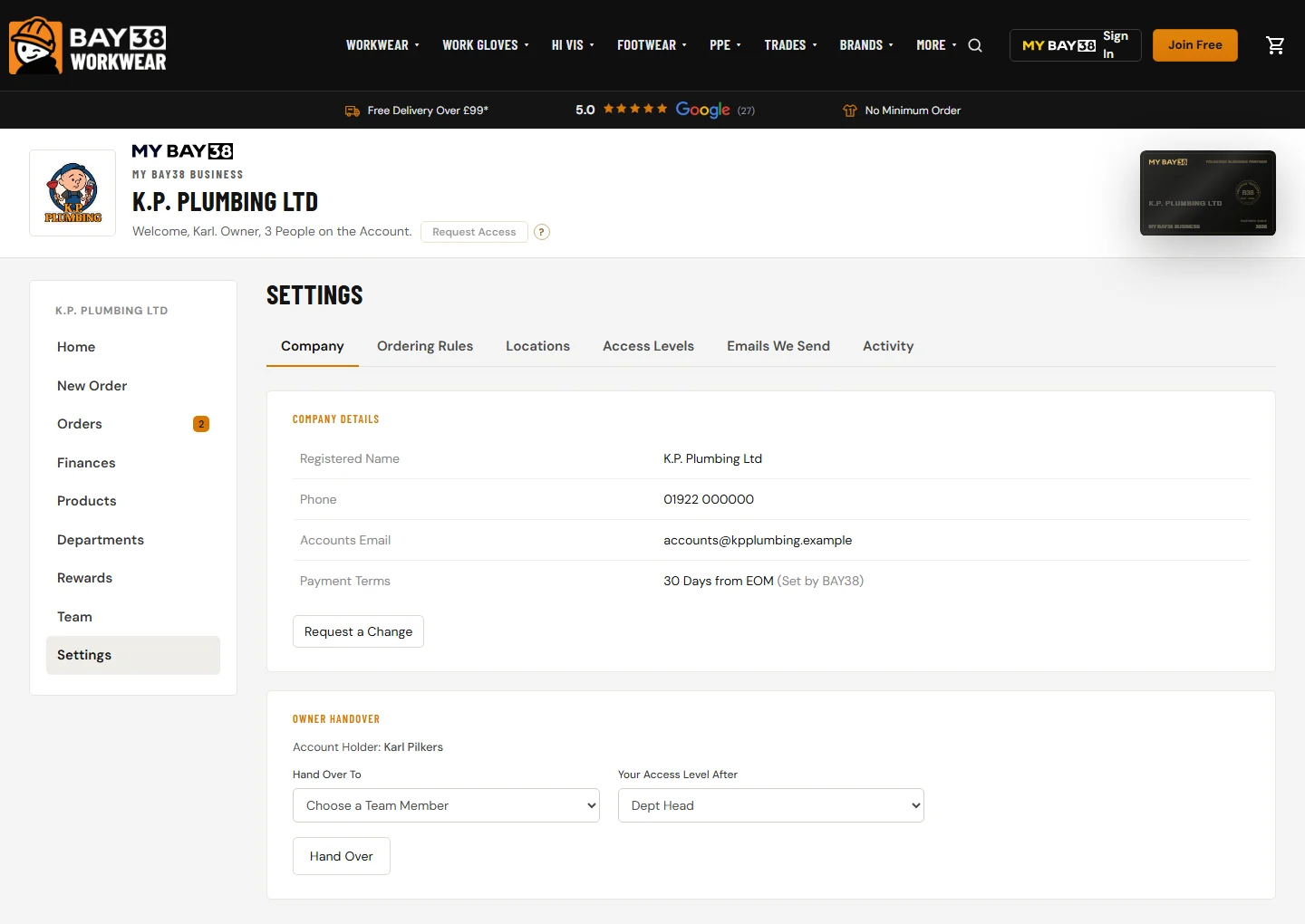
Settings
Company details, Ordering Rules (approvals, PO numbers, prices shown), Locations, Access Levels, the Emails We Send and an Activity log of every change. Owner Handover
passes the account to someone else on the team when the Owner moves on.
A Team Member's View
Bob sees only what he needs: his kit, his orders and his sizes. New Order shows the products his department can have, in his saved sizes, with what is left of each allowance. When it needs approval, his order goes to Sheila.
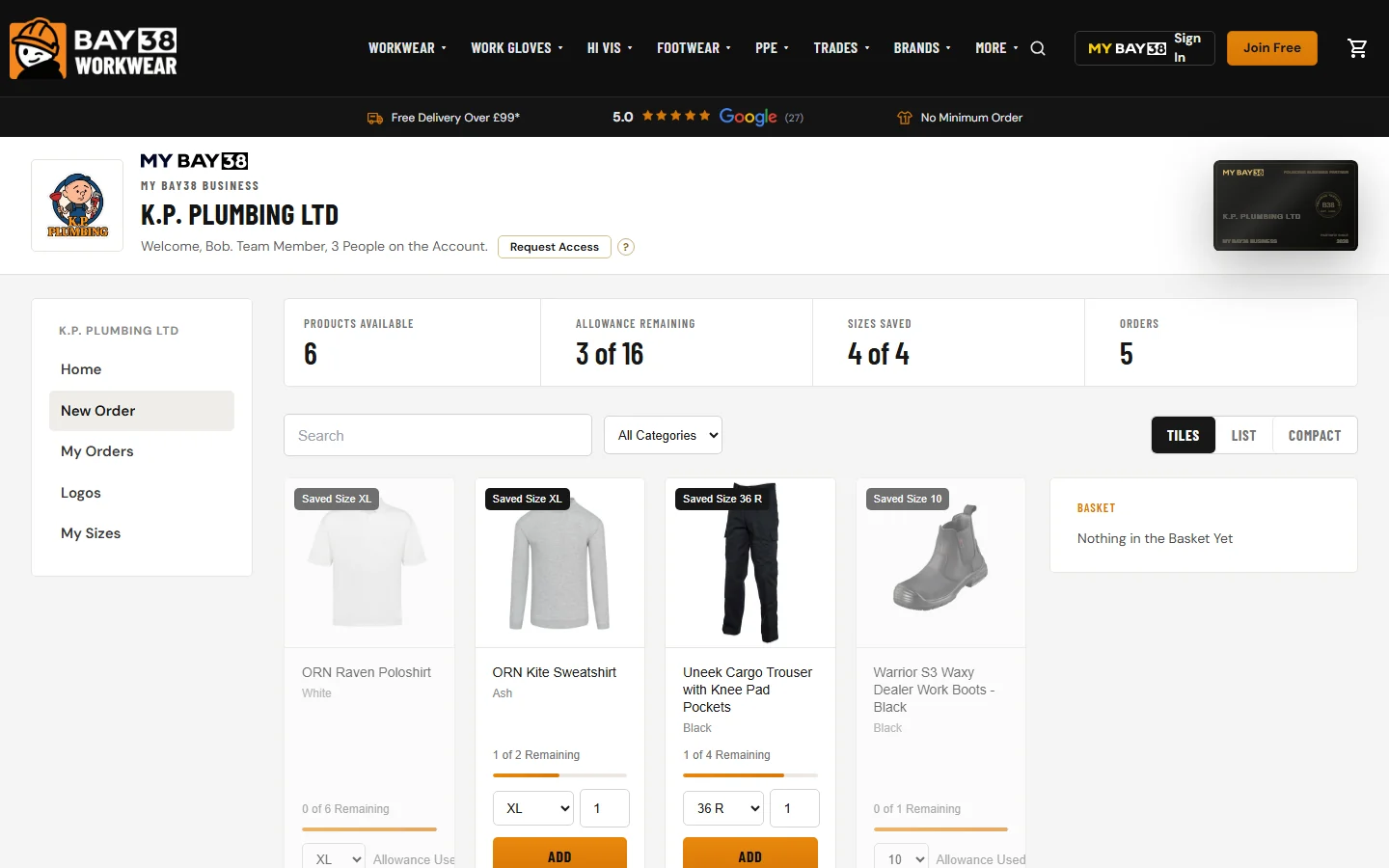
Allowance Used.
Set up your company account
Add your company, billing details, branding, departments and team. Your BAY38 account manager can help you set it up.